AWS Infrastructure (IaC - Terraform)
Our generator provides professional-grade AWS infrastructure templates using Terraform. We follow AWS Well-Architected Framework principles to ensure security, reliability, and cost-efficiency.
Infrastructure Tiers
You can choose between two tiers depending on your project needs and budget.
| Feature | Standard (Cost-Efficient) | Production (High Availability) |
|---|---|---|
| Target Use Case | Dev, Staging, MVP | Production, High-Traffic Apps |
| AWS WAF | ❌ Disabled (Save ~$30/mo) | ✅ Enabled (SQLi, XSS Protection) |
| RDS Database | Single Instance | Multi-AZ (Automatic Failover) |
| Compute (EC2) | 1 Instance | Multiple Instances (Cross-AZ) |
| NAT Gateway | 1 NAT (Shared) | 1 NAT (Shared) |
| Estimated Cost | ~$20 - $50/mo (Free Tier possible) | ~$150 - $250/mo |
Visual Architecture
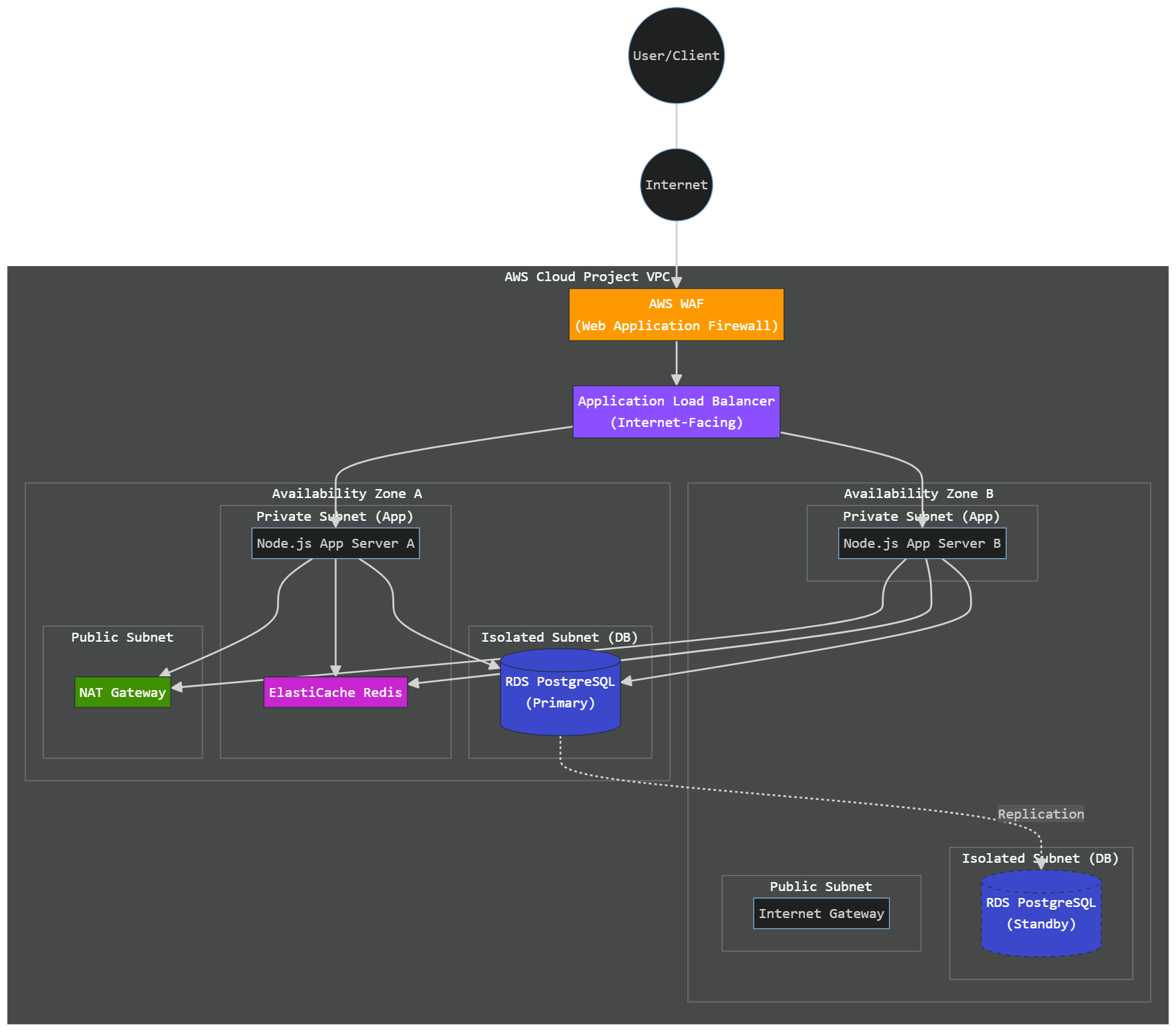
Production Tier (High Availability)
This architecture is designed for zero-downtime and maximum security, distributing application and database resources across multiple Availability Zones (AZs).
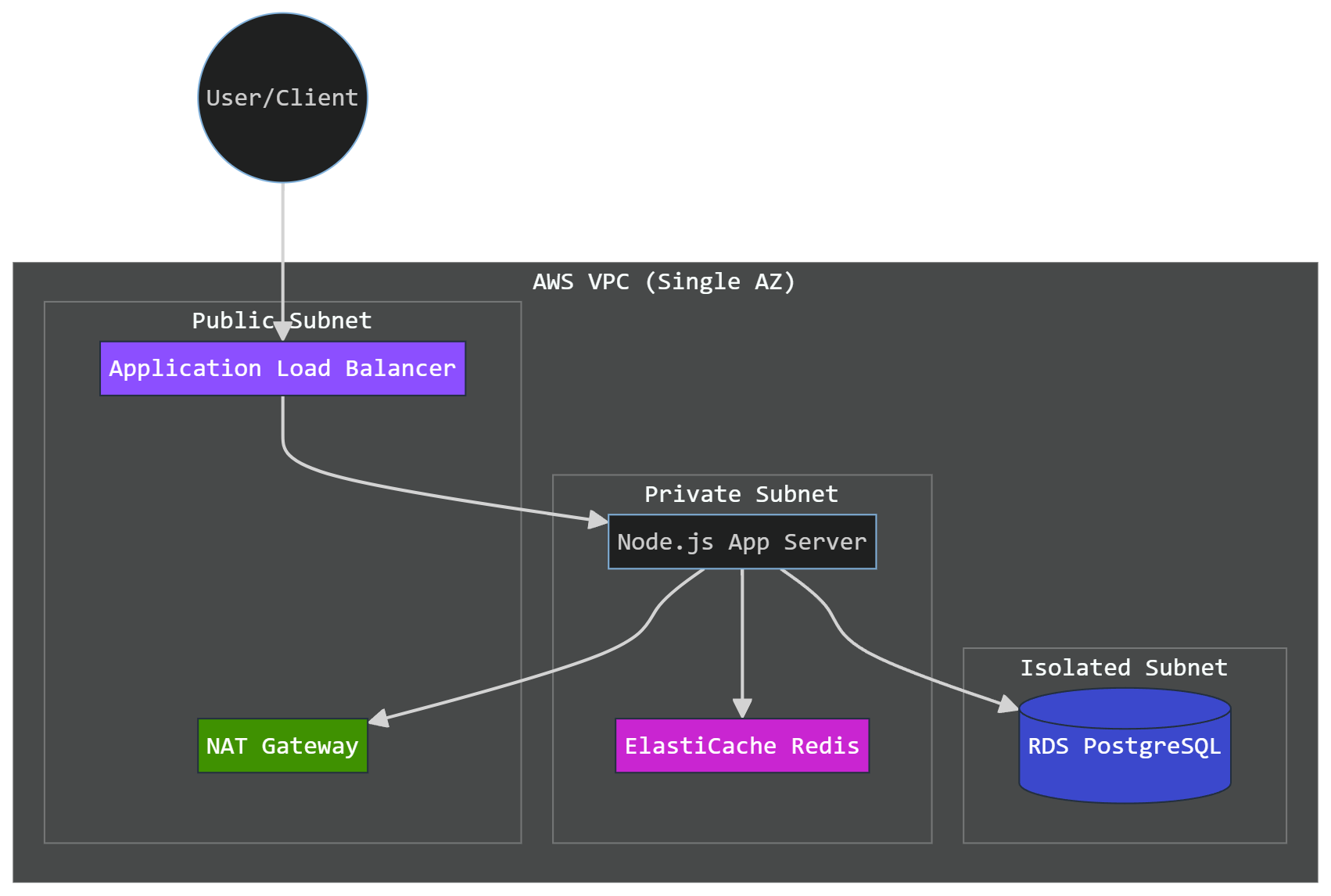
Standard Tier (Cost-Efficient)
Optimized for development and MVPs, reducing monthly costs by using single-instance resources.
Architecture Details
Network Layer (VPC)
Both tiers use a 3-tier VPC architecture:
- Public Subnets: For Load Balancers (ALB) and NAT Gateways.
- Private Subnets: For Application (Node.js) instances. No direct public access.
- Isolated Subnets: For Databases (RDS). Completely air-gapped from the internet.
Security Features
- Security Groups: Strict "Least Privilege" rules. Database only accepts traffic from Application. Application only accepts traffic from ALB.
- SSM Management: No SSH (Port 22) needed. Management is done via AWS Systems Manager for better security audit.
- WAF (Production Only): Advanced protection at the edge to block malicious traffic.
File Structure
When you select Terraform, a /terraform folder is created at your project root:
/terraform
├── main.tf           # Root orchestration
├── variables.tf      # Configuration variables
├── outputs.tf        # Deployment results
├── provider.tf       # AWS Provider config
└── modules/          # Reusable modules
    ├── vpc/          # Networking
    ├── security/     # WAF, ALB, SGs
    ├── database/     # RDS Instance
    ├── compute/      # EC2 Instances
    └── cache/        # ElastiCache Redis
How to Deploy
1. Prerequisites
- AWS CLI configured with your credentials.
- Terraform CLI installed.
2. Initialization
Navigate to the terraform folder and initialize:
cd terraform
terraform init
3. Review & Plan
Check what resources will be created:
terraform plan4. Apply
Deploy the infrastructure to AWS:
terraform applyWARNING
Running terraform apply on a real AWS account will incur costs. Always run terraform destroy when you are done testing to avoid unexpected charges.
Local Testing (LocalStack)
You can test this entire infrastructure locally using LocalStack, allowing you to validate your Terraform configuration without spending any money on AWS.
1. Prerequisites
- Docker Desktop installed and running.
- LocalStack CLI installed:
pip install localstack. - (Optional) LocalStack Desktop for a GUI view of your resources.
2. Start LocalStack
Open your terminal and run:
localstack start -d3. Configure Terraform for LocalStack
To redirect Terraform to your local environment, follow these steps inside the /terraform folder:
A. Create localstack.tf: Create a new file named localstack.tf with the following content:
provider "aws" {
  region                      = "us-east-1"
  access_key                  = "test"
  secret_key                  = "test"
  skip_credentials_validation = true
  skip_metadata_api_check     = true
  skip_requesting_account_id  = true

  endpoints {
    ec2           = "http://localhost:4566"
    rds           = "http://localhost:4566"
    elb           = "http://localhost:4566"
    elbv2         = "http://localhost:4566"
    wafv2         = "http://localhost:4566"
    iam           = "http://localhost:4566"
    sts           = "http://localhost:4566"
    elasticache   = "http://localhost:4566"
  }
}
B. Comment out default provider: In provider.tf, comment out the existing provider "aws" block to avoid conflicts.
4. Deploy Locally
Now you can run the standard Terraform commands:
terraform init
terraform plan
terraform apply -auto-approve
IMPORTANT
Troubleshooting: AMI Lookup Failure in LocalStack If you get data.aws_ami.latest: Search returned no results during the plan or apply step, it is because LocalStack does not mock the standard "amzn2-ami-hvm-*" AMI by default.
To resolve this, open your /terraform/modules/compute/main.tf and change the AMI name filter to "*":
filter {
  name   = "name"
  values = ["*"]
}
WARNING
Real AWS Deployment: The filter "*" matches any Amazon-owned image, which could result in a non-Linux or incompatible OS when deploying to real AWS. Before running terraform apply on a real AWS account, ensure you change the filter value back to "amzn2-ami-hvm-*" so that standard Amazon Linux 2 is selected and your user data script (which uses yum and docker) executes successfully.
For a step-by-step resolution, see the Troubleshooting & FAQ Guide.
5. Verify Resources
You can verify your local deployment by visiting the LocalStack Web App or by checking the health endpoint to verify the status of currently running services:
curl http://localhost:4566/_localstack/healthThis will return a JSON object listing all mock services and their status (e.g., "ec2": "running", "rds": "running"). Make sure all the endpoints configured in your localstack.tf show as "running" or "available".